

Silhouette: Let's Get Started
Warning: Be prepared to get addicted. Once you make your first purchase from the Silhouette store, there is no turning back.
You just purchased your new Silhouette machine and as it sits on your desk in all its crafty, cutting glory, you ponder to yourself, "What now?"
If you are anything like myself, you want to dive right into projects; greeting cards, 3D boxes, heat transfer designs, vinyl monogrammed frames, stickers for your new planner, OH MY! There is still some basic information you will need to get acquainted with before you start, but once you feel comfortable with Silhouette Studio, you will be ready to go Silhouette Shopping!
Let's take a quick stroll before you hit the floor running:
How To: Purchase, Download, and Open a Design in Silhouette Studio
When you open Silhouette Studio on your computer, you will see the home screen.


If you decided to press the *Don't show this page again* button during a previous exploration, then your screen will
pop up with the following:
Next, your eyes will already know where to go, so follow them by pressing the STORE button in the middle of the screen. If you don't have the original starting page, you'll find the STORE button on the left hand side as shown here:

Quick Reminder: Before we get into the good stuff, lets just make sure you have set up your credit card information, dowload card, or promotional download codes. This will make purchasing quick and easy once you get going.
You can open up the ACCOUNT TOOLS page by clicking on the drop down menu next to your name and selecting MY ACCOUNT. From here, you can choose to enter and edit any information for adding a credit card or placing money into your Silhouette account. Go ahead and get this done before you start all the fun!

Back to the good stuff:
This is where all the magic and long hours infront of your screen begin! The Design Store:

Make sure you sign in with your user
name and password. Sign in button is on the top right, next to the shopping cart icon.
If this is your first time, make sure you set this up.
Feel free to browse around the shop through a few different avenues.
1) Browse by entering key words into the search box located in the top section of the screen.
2) Have a look at the New Designs, Trending Designs, Featured Designs and Trending Searchings shown in the area below the Search box.
3) Click on either, Free Designs, What's New, Designs, Ready, Set, Make, or Artists buttons located at the very top of the screen.
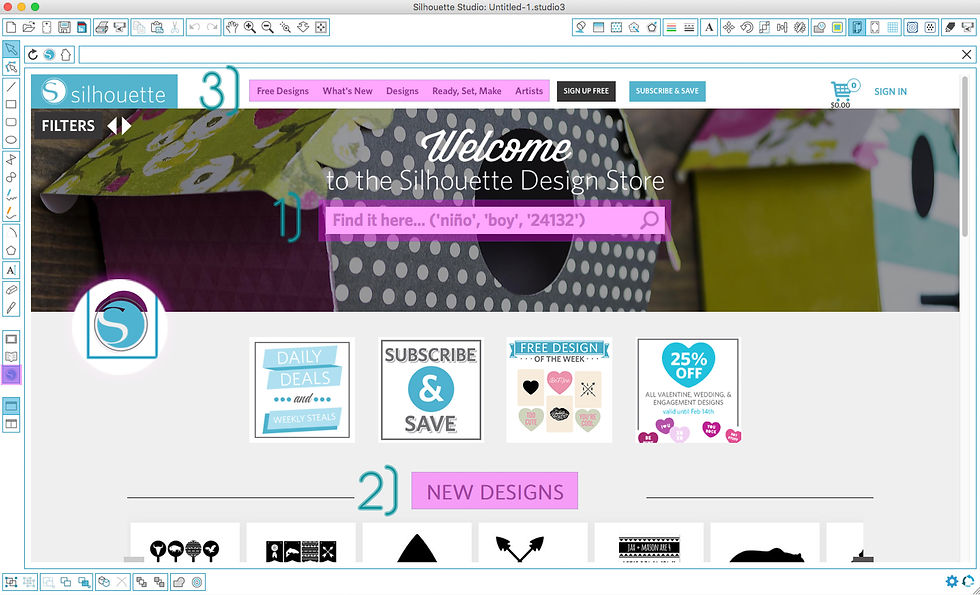
It will be overwhelming at first, so my suggestion is to first decide what kind of project you will be creating and stick with seraching for only designs that work with that project. Otherwise, you'll end up getting side tracked and buying the entire store!
I've decided to create a 3D Box Card for my husband to celebrate Valentines Day. Since we have a pack of dogs at our house, I'm going with the theme "Puppy Love." I will be purchasing a handful of seperate designs to incorporate onto my card. If you're new to Box Cards or need a little more assistance when designing, there are plenty of Box Card all-in-one downloads, based on your specific themes.
So, go ahead and browse your little heart out!
Once you've found the design you want to purchase, click on the ADD TO CART button that pops up when you either hover over the image, or click on the image.

You'll notice that once you start making purchases, they will be dimmed on the design lists with the words "I Own It," so that you don't make any duplicate purchases.
When you press ADD TO CART, it will change to CHECKOUT. Once you have selected all your designs, head on over to the Check Out page by clicking on the Shopping Cart Icon located at the top right of the page.

In the MY SHOPPING CART section, you will see all of your selected designs. Make sure you select "For Personal Use" in the drop down box, unless you are using them for commercial use. You don't want to accidentally be charged much more. So double check your Total before pressing Checkout as well! The Checkout button is located on the bottom right of the My Shopping Cart screen.

If you've already set up a credit card, download card, or promotional download code to your account, your total will show FREE, unless the balance of your Credit is less than the purchase amount, in which case it will show the total amount due, which will be deducted from the credit card on file.
Once you press CHECKOUT, the Terms of Use statement will pop up and you will be asked to enter your password to authorize the download of your items.

As soon as you press SUBMIT, your download will begin to start. The following screen will appear which shows all your recent downloads.

To open a file that you just recently downloaded, you can either double click on the item from the screen that is currently open, or click on the SHOW LIBRARY botton located on the left side of the screen, right above the SHOW DESIGN STORE Button.

Once you double click on your design, it will open up to the main screen where your design will be patiently waiting for you to begin it's journey to becoming something amazing!

There is no limit to what you can create once you learn all the in's and out's of your new Silhouette along with the Silhouette Studio program.
Take a look at my final Valentine's Day Box Card!


Comments